
PROCEDURE MANUAL
How to choose the monitored apps
Alibi records nothing until you choose the apps. There are two parts: granting notification access in Android and turning on the apps you want to keep. It takes less than a minute.
Screenshots taken on Android 16. The apps in the list are fictional. On other devices, the system screens may have a different name and look.
PART 1 · NOTIFICATION ACCESS
-
STEP 01
Open Alibi and tap the notice
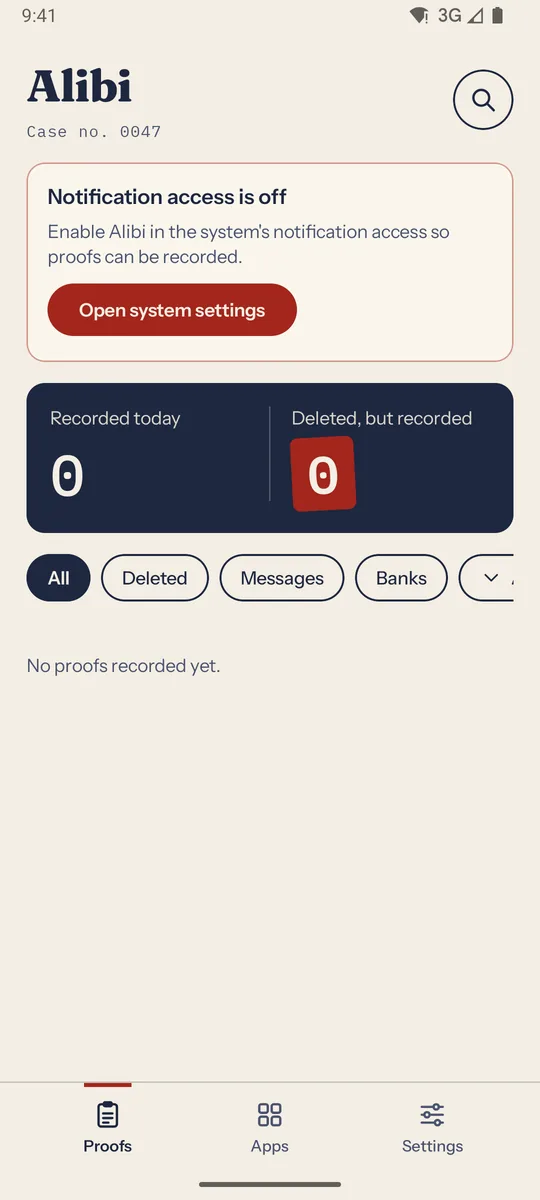
The first time, tap “Open the proof archive”. At the top of the Proofs screen you’ll see the notice “Notification access is off”: tap “Open system settings”.
-
STEP 02
Read the notice and continue
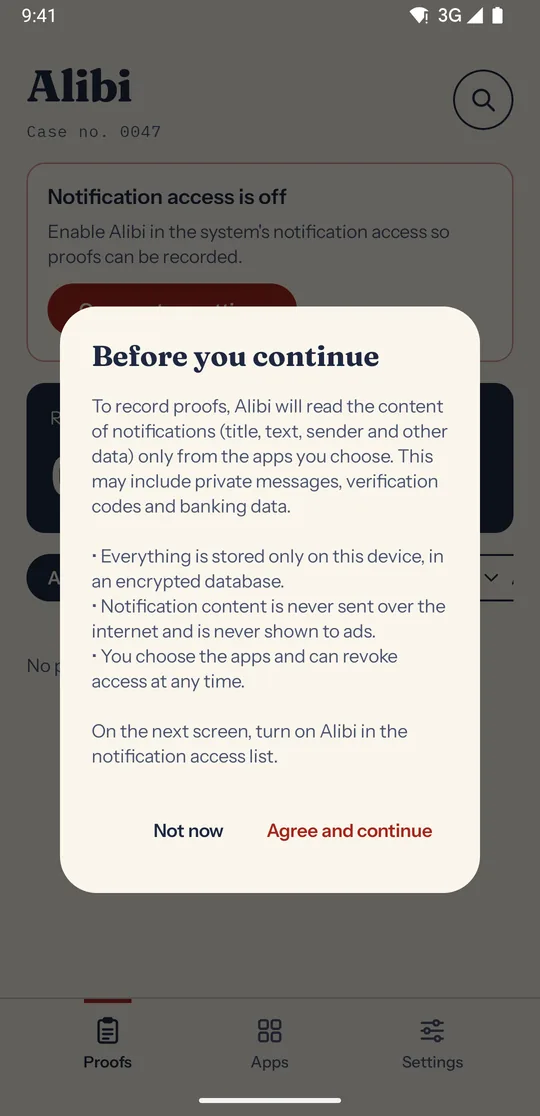
Before opening Android, Alibi explains what it will read and where it keeps it: only the apps you choose, all on this device, in an encrypted database. If you agree, tap “Agree and continue”.
-
STEP 03
Turn Alibi on in Android
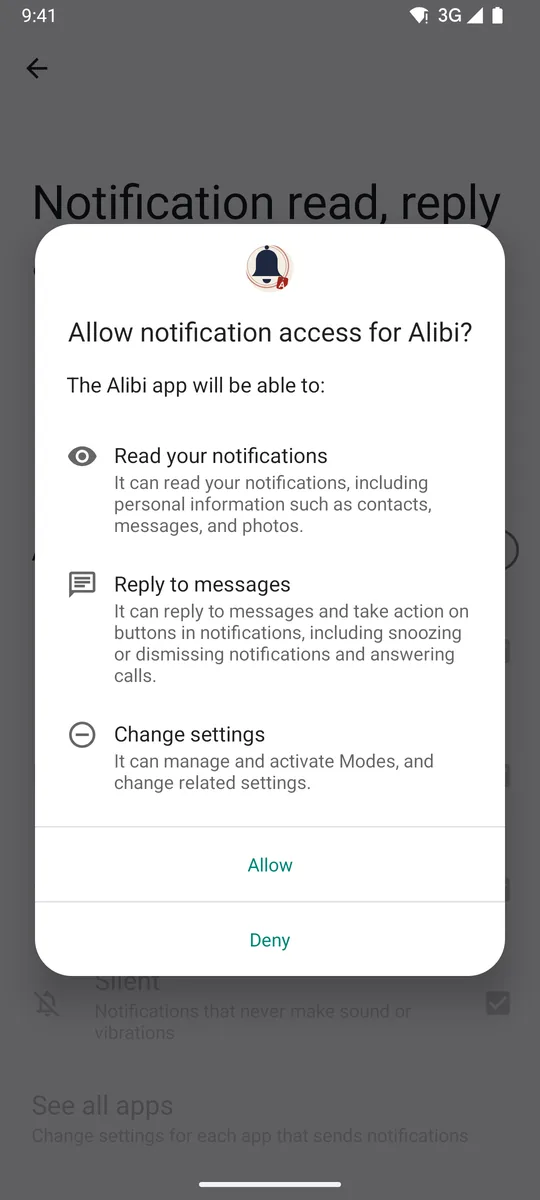
Android opens the list of apps with notification access. Tap “Alibi”, turn on “Allow notification access” and confirm with “Allow”. Then go back to Alibi.
On some devices this screen is called “Notification access” or “Device & app notifications”. You can revoke access there at any time.
PART 2 · CHOOSING THE APPS
-
STEP 04
Open “Monitored apps”
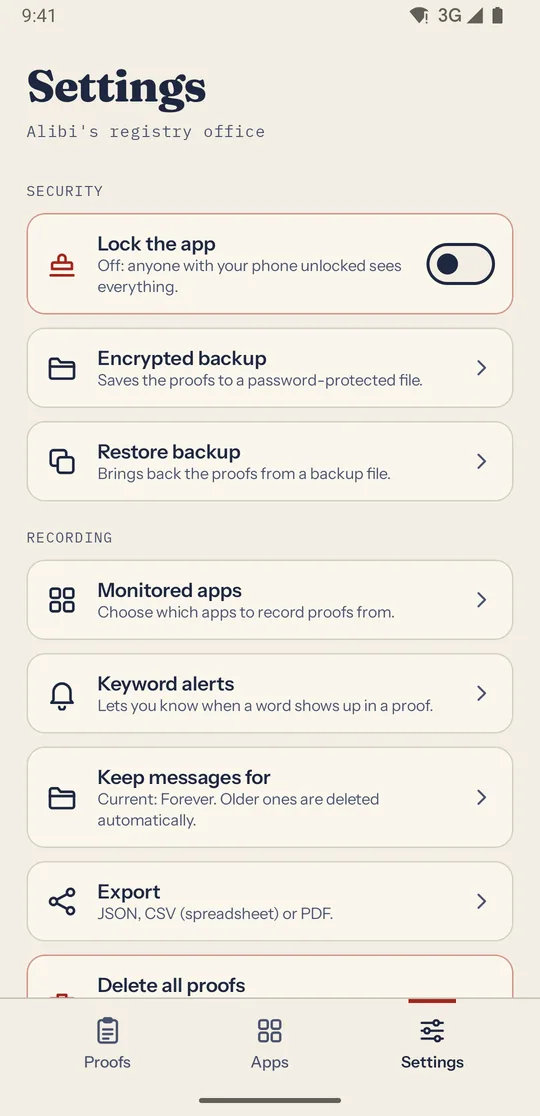
In the “Settings” tab, under Recording, tap “Monitored apps”. While no app is chosen, the “Choose apps” button in the “Apps” tab takes you to the same screen.
-
STEP 05
Turn on the apps you want to keep
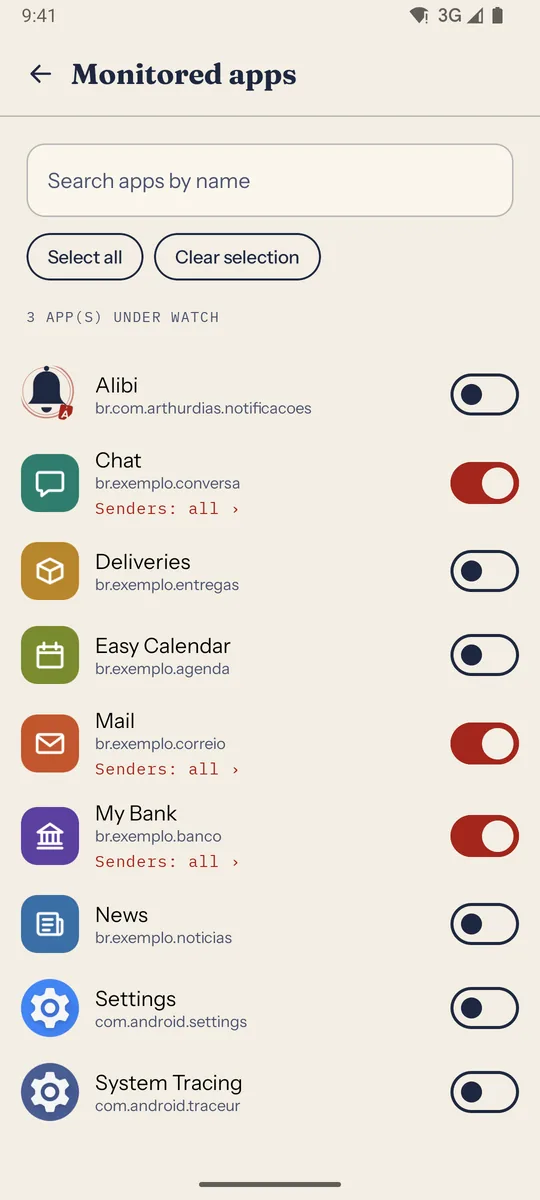
The list shows your installed apps, all turned off. Turn on the switch of each app whose notifications you want to keep. The counter at the top shows how many are under watch.
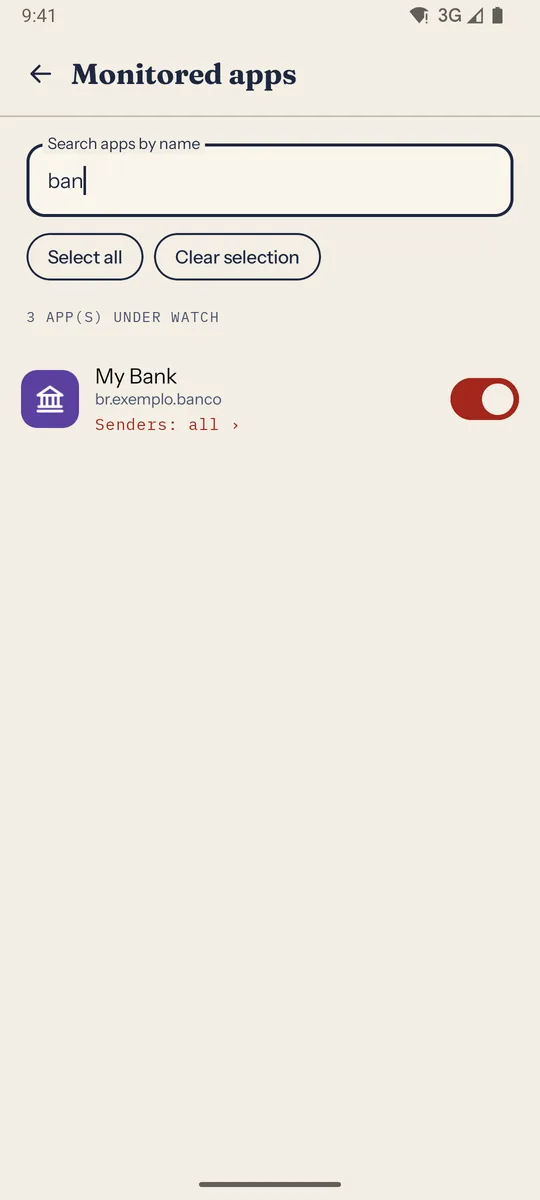
Use “Search apps by name” to find an app quickly. “Select all” and “Clear selection” apply to the apps currently in the list, including after a search. Choose only what you need.
-
STEP 06 OPTIONAL
Filter by sender
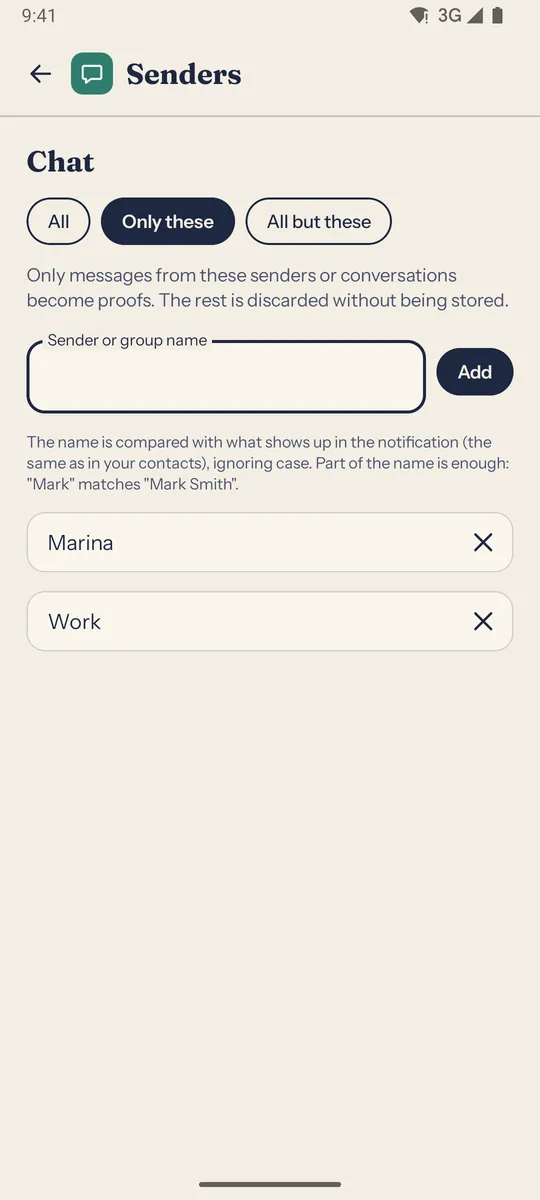
Apps that are turned on show “Senders: all ›”. Tap it to choose between “All”, “Only these” or “All but these” and add the names as they appear in the notification. Part of the name is enough: “Mark” matches “Mark Smith”.
-
STEP 07
Done: the archive is open
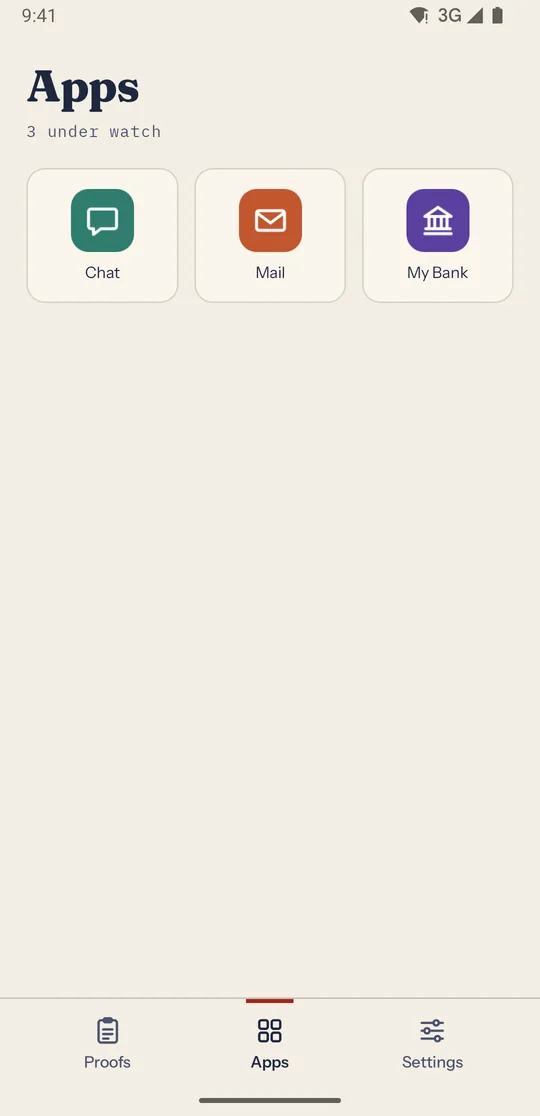
The “Apps” tab shows the apps you chose. From now on, every notification that arrives from them becomes a numbered proof. Tap an app to see its proofs organized by date.
To stop recording an app, turn off its switch in “Monitored apps”. Remember that only what arrives as a notification is kept: muted conversations in messaging apps don’t produce notifications.
Don’t have Alibi yet?
Free for Android. Everything stays on your device.